Getting started
Rotate runs on your iPad, at the side of the pitch. No app store, no account, no sign-up.
Twelve names typed in and you are ready before the whistle. This walks through a first match, from an empty screen to the last one.
 Putting it on your iPad 🔗
Open Rotate in Safari, on the iPad you will have at the pitch.
Open Rotaterotate.backstickhockey.com
Tap the Share button - a square with an arrow coming out of the top - scroll down the list and tap Add to Home Screen. Rotate is now an icon like any other app, and opened from there it fills the screen and works with no signal.
Your first match 🔗
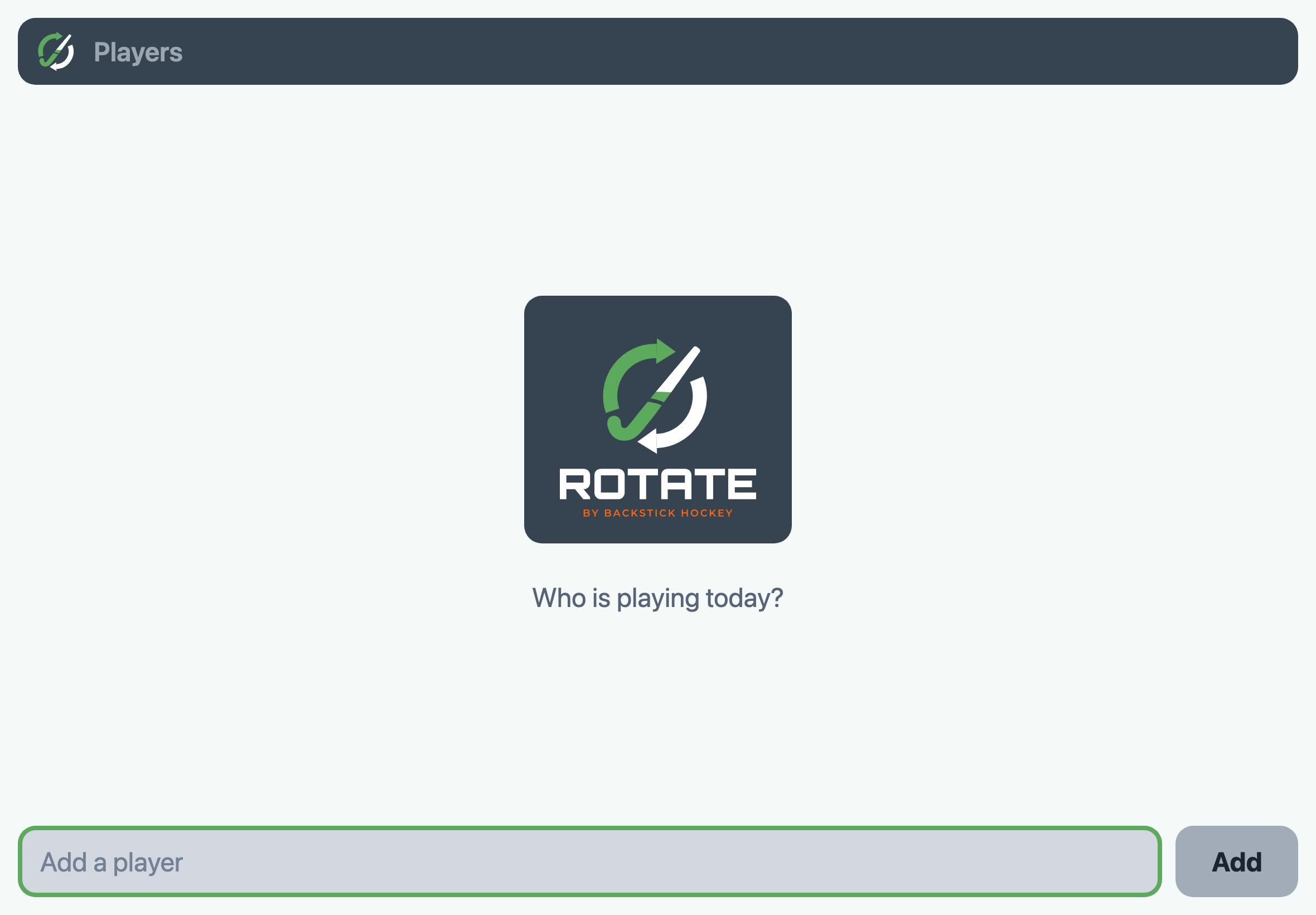
Type in your players. Everybody you type is on today's team.
Tap the match's name at the top to get to the pitch. Everybody starts on the bench, and the eleven who are starting walk on with a tap each. Drag them around into the position they play on the pitch.
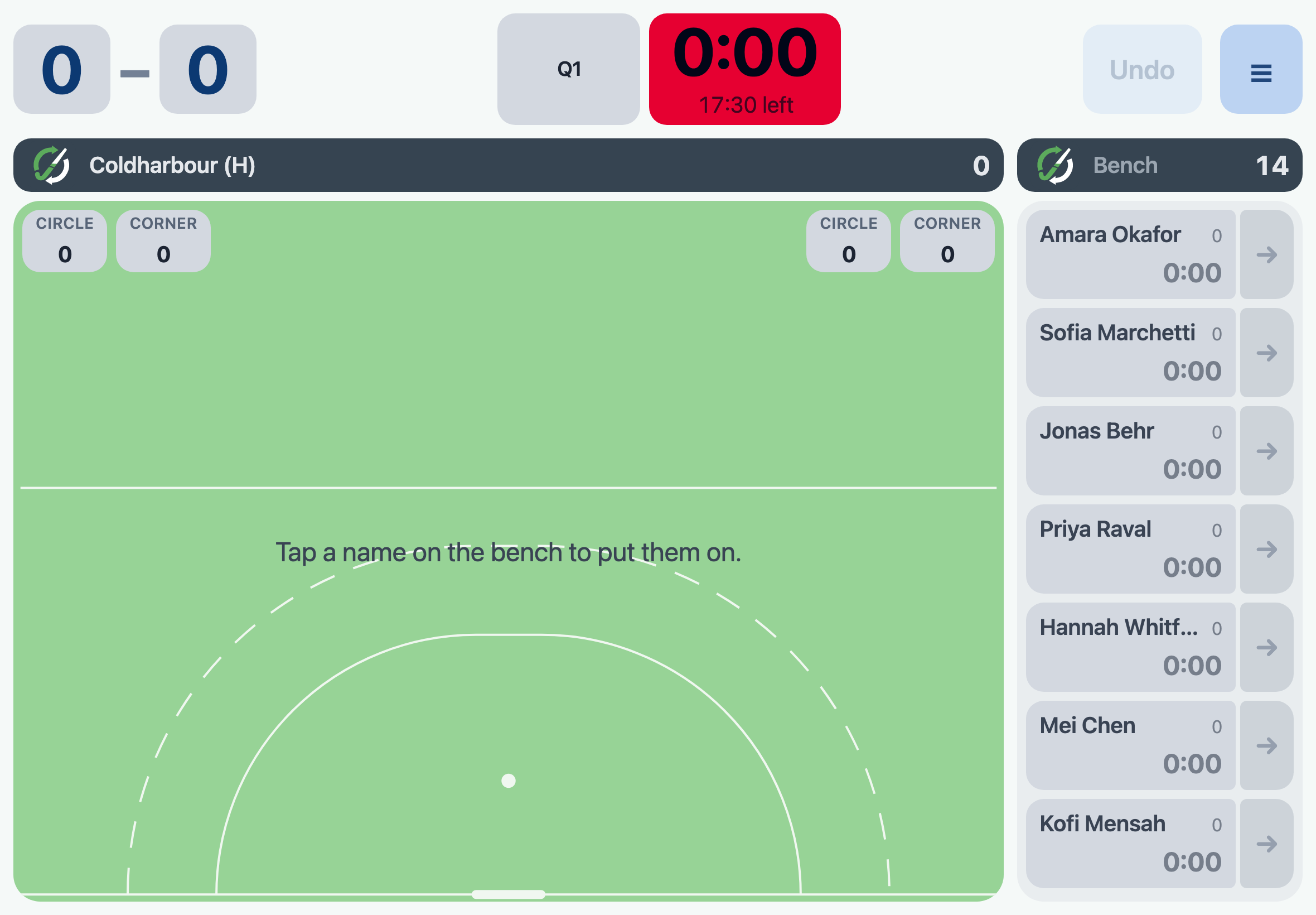
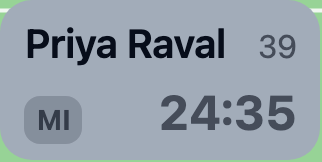
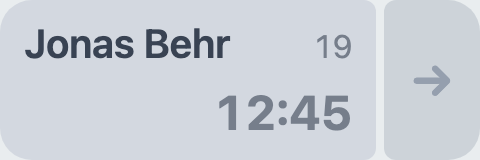
A card on the pitch shows the player's name, their minutes for the match, and how long they have been on this stint. A bench card shows how long they have been sat down instead. The bench sorts itself, longest wait at the top, so the top card is who we think is next. You are free to ignore that entirely - tap whoever you want and Rotate does not argue.
Making a sub 🔗
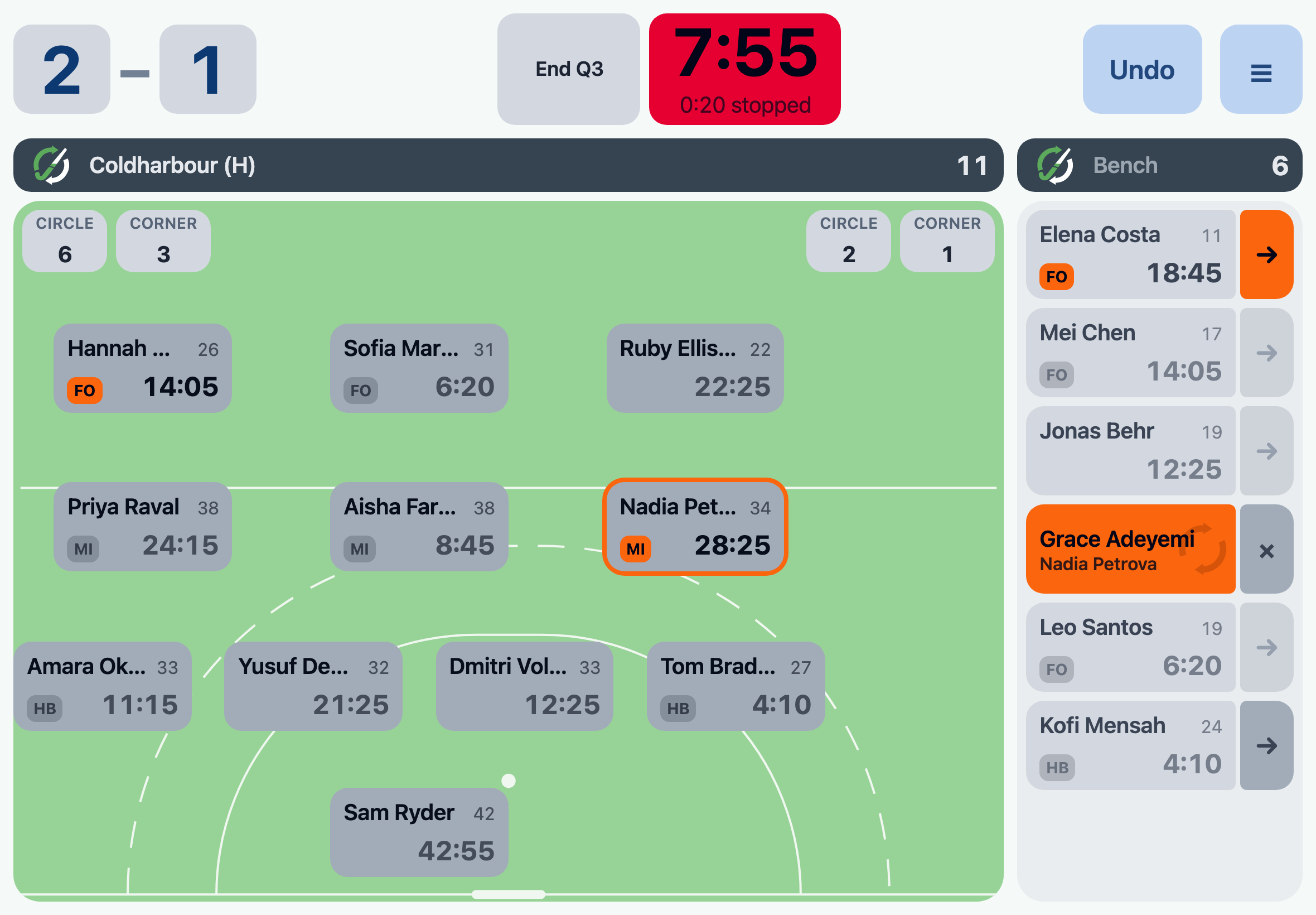
Grace is coming on for Nadia. Tap Nadia out on the pitch, then tap Grace on the bench. Nothing moves. Grace's card goes orange with both names on it, and she walks to the halfway line.

However many times the ball goes out first, that card sits there waiting. When bibs are swapped, tap it. The two swap places and both their clocks start from zero. The ✕ cancels, and it is as if you never tapped.
Line up as many changes as you like and tap each one as it happens.
Timing the match 🔗
A red clock is a stopped clock. Tap it and the quarter starts.
The big number is how long the quarter has run. The line under it is how long is left, so nobody has to do that subtraction in their head.
Tap the clock again at the whistle and it stops. While it is stopped, that line counts up how long you have been stood there, so at quarter time you know how long the break has been.
With the clock stopped, the button beside it says End Q1. Tap it to move on. In the last quarter it says End game. Rotate never decides a quarter is over on its own.
Tracking goals 🔗
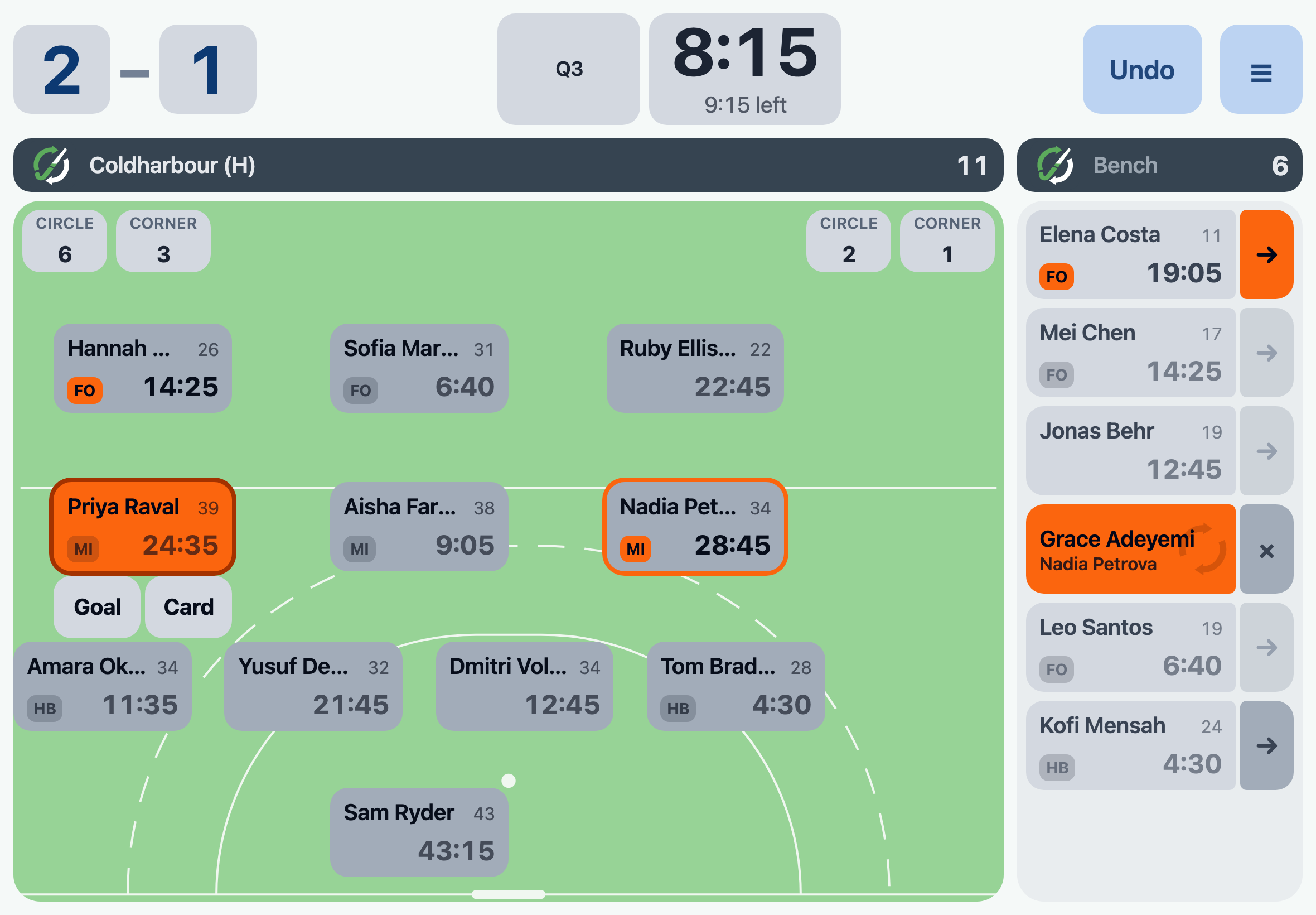
Tap the player who scored, then tap Goal. It is on the scoreboard from that tap. Everything after is optional: whether it was a field goal, a corner or a stroke, and as many assists as you like.
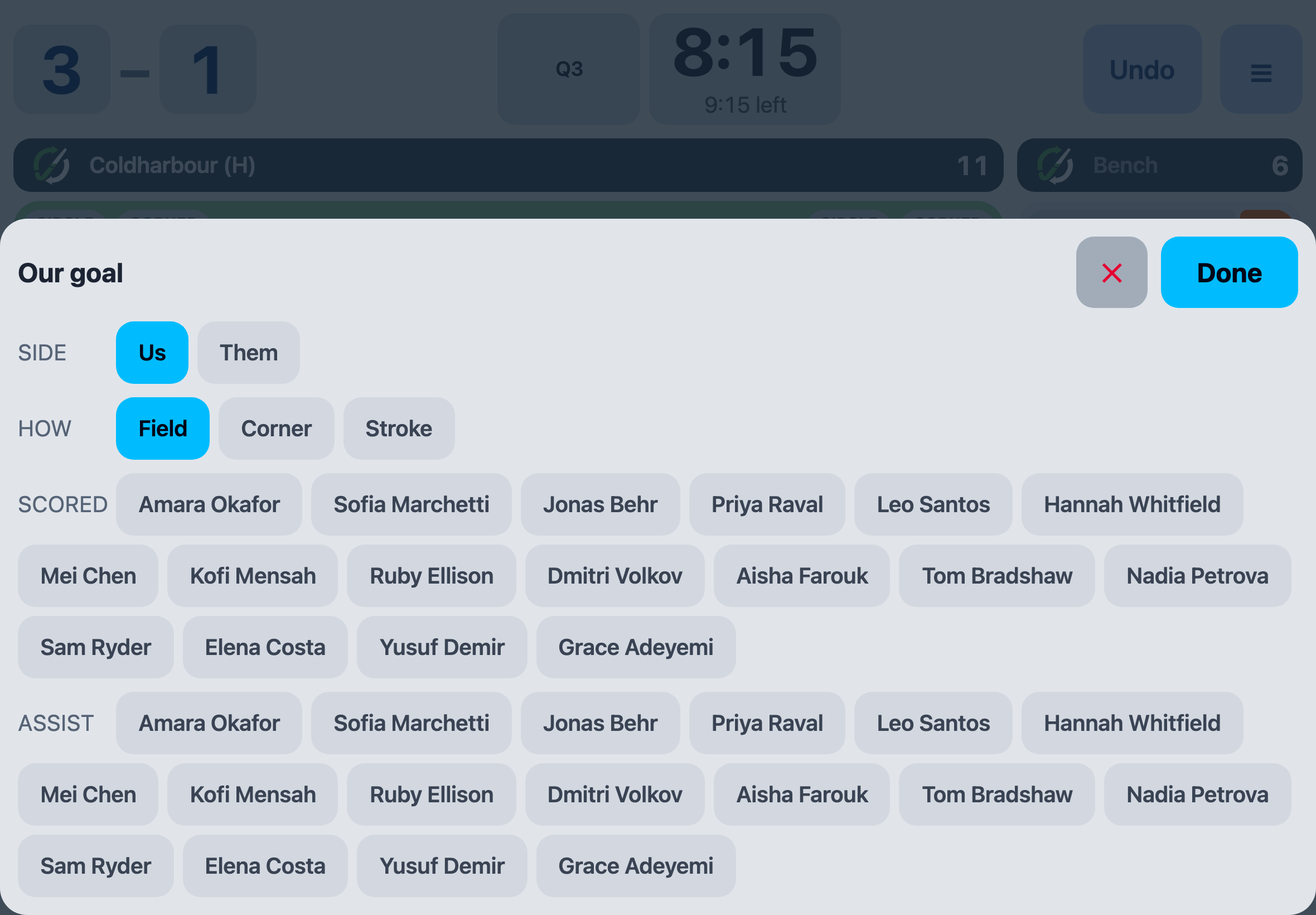
If the opposition score, tap the score at the top of the screen instead, then Goal. Do the same if one of your own comes off the bench to take a stroke and goes straight back. The rules allow that, and because they never actually came on there is no card on the pitch to tap.
Tracking cards 🔗
Same idea: tap the player, tap Card, and choose which one. For the opposition, tap their score.
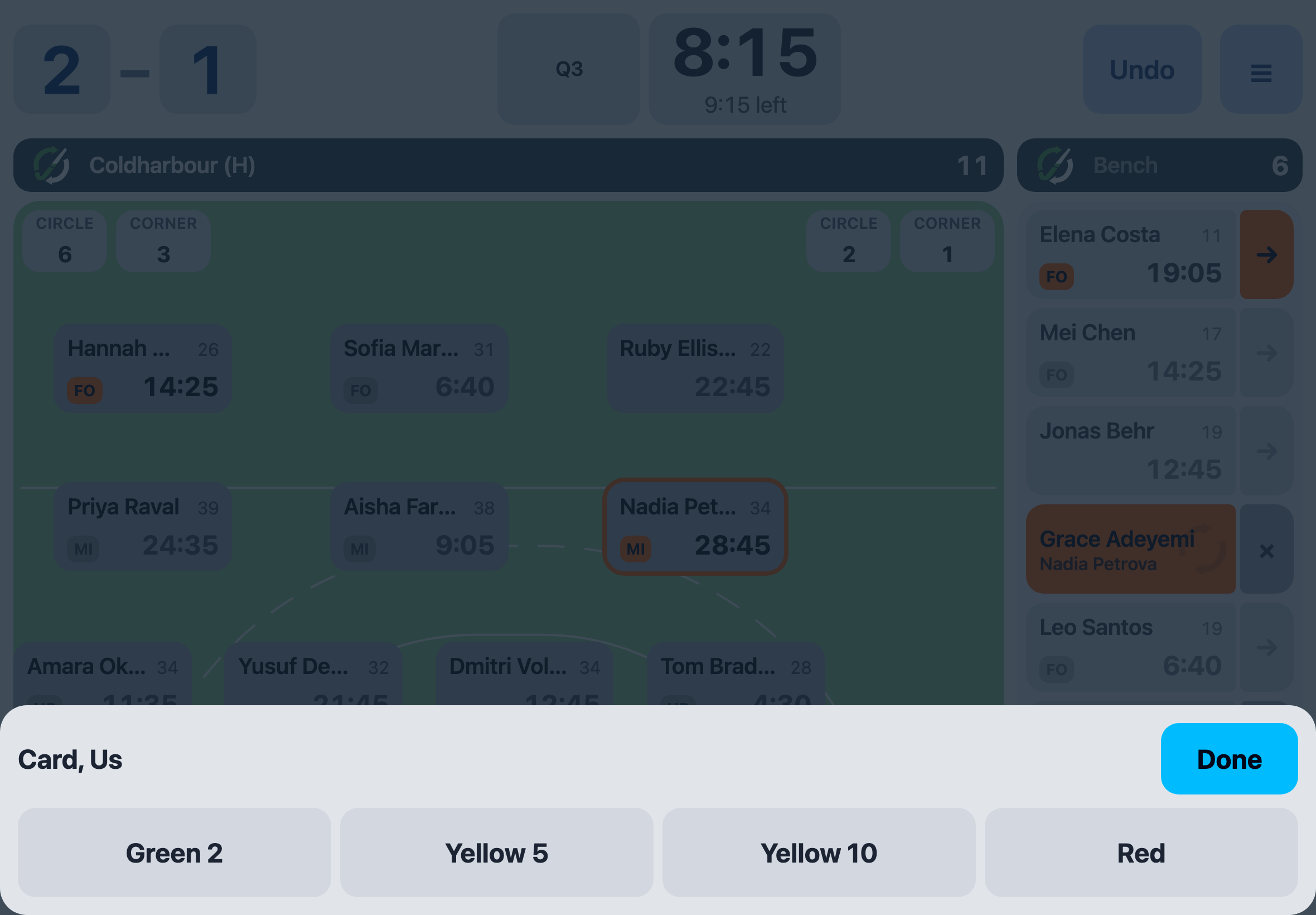
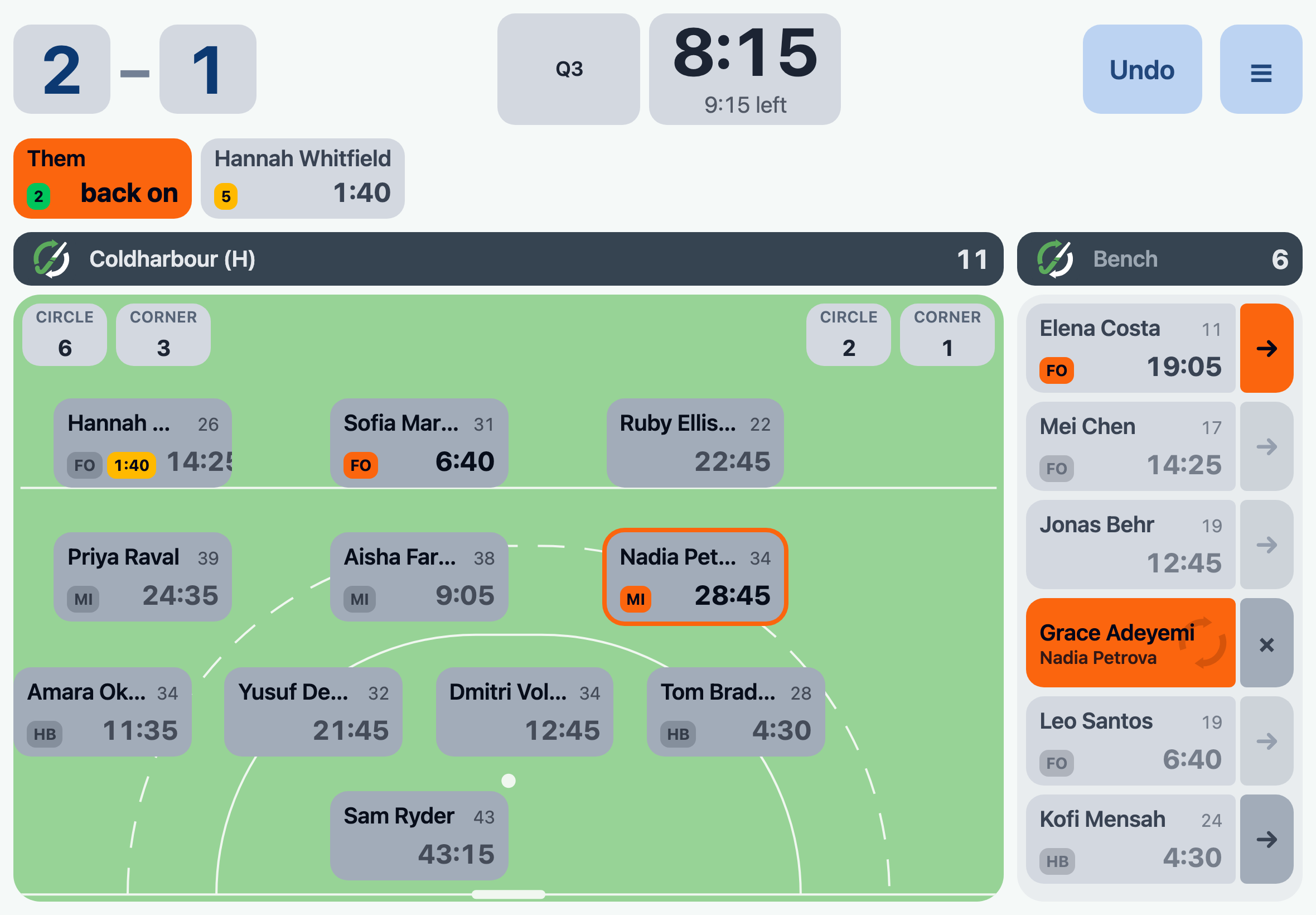
The player's card shows it, and above the pitch a countdown runs down the time left to serve. At zero it turns orange and says back on. Tap it when the umpire actually lets them back on - the umpire decides the real moment, not the countdown.
It carries on without you 🔗
The iPad locks. Safari throws the tab away. It rains and you put it under your coat for ten minutes. Open it again and every number is right.
Tapped the wrong name? Undo, at the top of the screen.
Full time 🔗
With the clock stopped in the last quarter, the button beside it says End game. Tap it, and the clock reads FT and stands still.
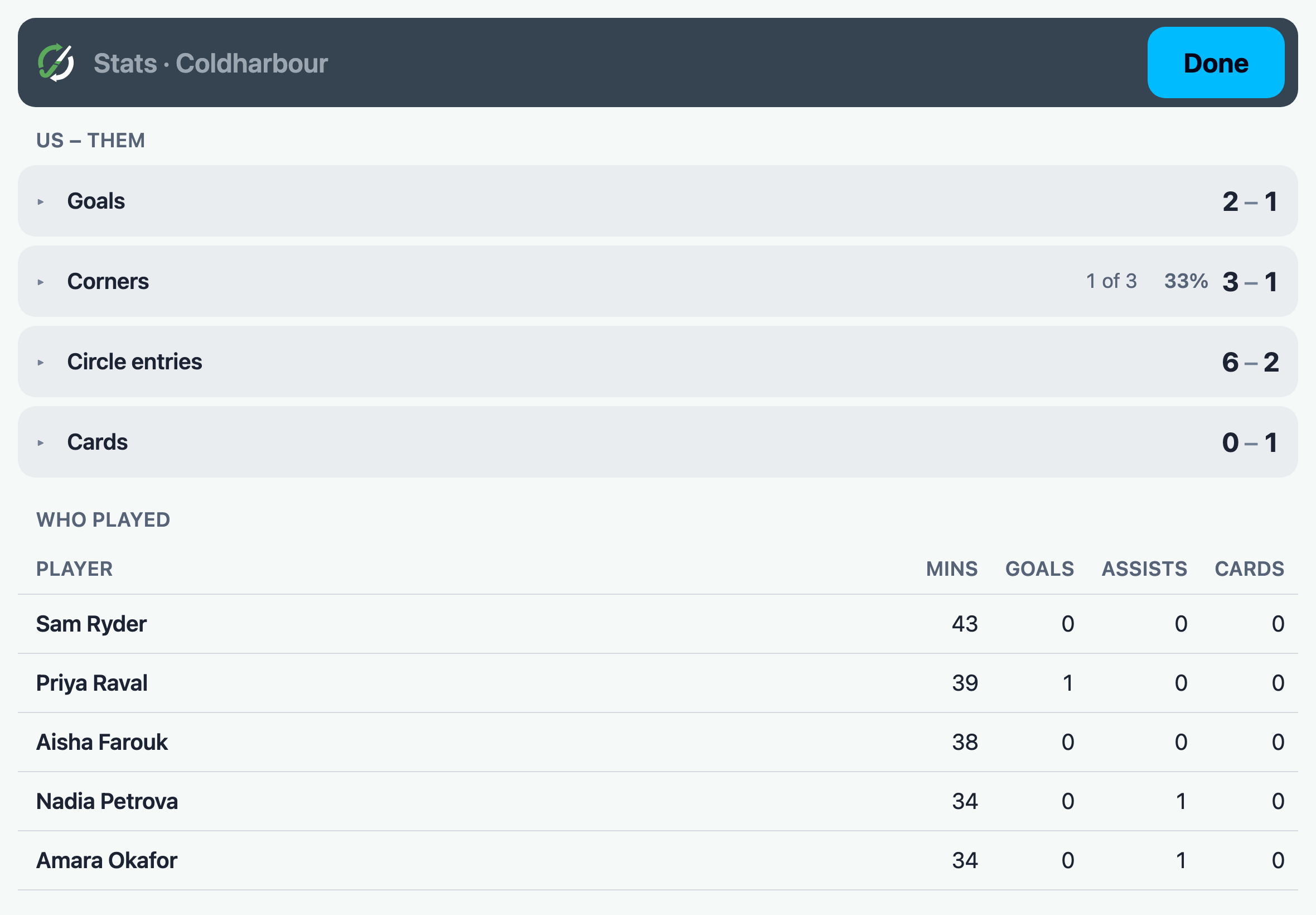
Nothing to save and nothing to file. The Stats screen already has who played how long, who scored, and how many of those corners turned into anything.
Try it on the sofa first 🔗
Type in twelve names, add eleven to the pitch and make a sub. Five minutes now is worth an hour on Saturday.
Open Rotate